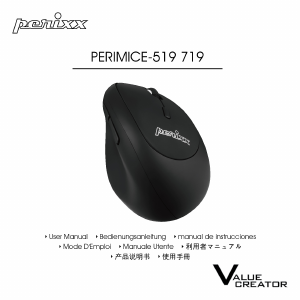
Manual de uso Acteck AM-1500RF Ratón

¿Necesita un manual para su Acteck AM-1500RF Ratón? A continuación puedes ver y descargar el manual en PDF gratis en español. Este producto actualmente tiene 4 preguntas frecuentes, 0 comentarios y tiene 0 votos. Si este no es el manual que desea, , contáctenos.

¿Su producto tiene algún defecto y el manual no ofrece ninguna solución? Vaya a Repair Café para solicitar un servicio de reparación gratuito.

Manual de uso

Loading…
5
6
We need know about you. Send your suggestions
If you have any question about our products,
please visit our web site.
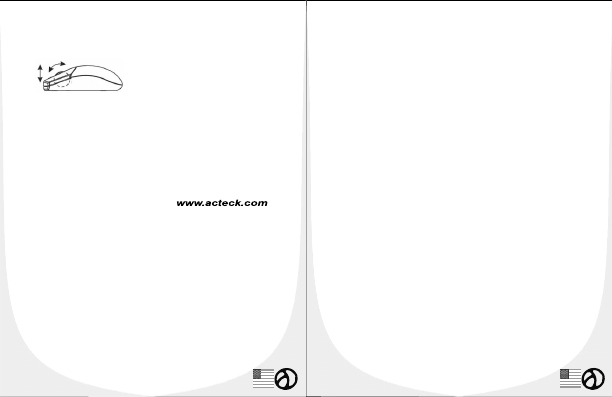
How to use the wheel
Your mouse has a wheel that functions both as a
wheel for Windows scrolling and also as a
customized button. It can be used as a standard
mouse button, click (press down) the wheel. To
Use the Middle Button, Directly Press down the
Wheel. For scrolling the screen, simply move the
wheel.
TROUBLESHOOTING
Wireless Mouse Troubleshooting
A. Mouse does not upon intallation
Try one more of the following:
1) For optimal performance, place adjust the
angle of the receiver to find the best
performance.
2) Make sure you have installed the batteries
correctly. Press the “Channel Reset” button on
the receiver and then press the “Channel Reset”
button on the mouse.
B. Mouse not detected:
When using the mouse, it may not be delected by
the computer or receiver. To remedy this problem
try the following
1) Make sure the receiver is plugged into the
right mouse port or USB port.
2) Make sure your mouse port has the proper
configuration. Refer to your computer
documentation for the correct port configuration.
3) You may re-setup the connetion RF Channel
between the mouse and the Receiver, especially,
when you have been changed or recharged your
batteries.
C. The Screen Cursors Does Not Move
Property:
1) Change the angle of your radio receiver. Try
adjusting the receiver and/or mouse to improve
reception.
2) Make sure thar the battery low indicator is
NOT lit on. Replace batteries if the low battery
indicator is lit on.
You may also need to change the RF Channel for
the mouse, press the “Channel Reset” button on
the receiver, then press the “Channel Reset”
button on the mouse.
D. Mouse does not work upon installation.
Try one or more of the following:
1)Make sure you have installed the Driver
correctly.
2) Make sure the receiver cabe is plugged into
the right mouse port or USB port.
GENERAL FEATURES
- Ergonomic Design
- Super Grip Coating
- Rechargeable by base
- Wireless Frequency 27MHz
- 1 Channel and 256 ID's
- Operation Range 1.5m
- 3 power save modes
- Plug and Play, no driver required
- Programmable buttons with optional driver
- Optical Tracking Engine
- 800 dpi resolution
- 5 Buttons + Scroll Wheel
- Dimensions 120 mm x 69 mm x 40 mm
- USB Interface
- Operation Temperature 41 - 104 °F
- Operation Humidity 20 90%
- Compatible with Windows
98/98SE/ME/2000/XP
- Compatible with Macintosh 8.6 or higher
Federal Communication Commission
Interference Statement
This equipment has been tested and found to
with the limits for a Class B digital device,
pursuant to Part 15 of the FCC Rules. These
limits are designed to provide reasonable
protection against harmful interference in a
residential installation. This equipment
generates, uses and can radiate radio
frequency energy and, if not installed and
used in accordance with the instructions,
may cause harmful interference to radio
communications.
However, there is no guarantee that
interference will not occur in a particular
installation. If this equipment does cause
harmful interference to radio or television
reception, which can be determined by
turning the equipment off andon, the user is
encouraged to try to correct the interference
by one of the following measures:
- Reorient or relocate the receiving antenna.
- Increase the separation between the equipment
and receiver.
- Connect the equipment into an outlet on a
circuit different from that to which the receiver is
connected.
- Consult the dealer or an experienced radio/TV
technician for help.
3) Unplug the receiver and then plug in the
receiver again. Make sure that it had been
detected by the Operating Systems properly.
4) Make sure your mouse port has the proper
configuration. Refer to your computer
documentation for the correct port configuration.
Receiver Troubleshooting
Receiver does not work before the installation.
Try one or more of the following:
1. Make sure you have installed the Driver
correctly.
2. Make sure the cable is plugged into the right
mouse port.
3. Unplug the Receiver and then plug the mouse
again.
4. Make sure that Receiver had been detected by
the Operating Systems properly. Make sure your
mouse port has the proper configuration. Refer to
your computer documentation for the correct port
configuration.
This device complies with Part 15 of the FCC
Rules. Operation is subject to the following
two conditions: (1) This device may not cause
harmful interference,
and (2) this device must accept any
interference received, including interference
that may cause undesired operation.
FCC Caution: Any changes or modifications
not expressly approved by the party
responsible for compliance could void the
user's authority to operate this equipment.
IMPORTANT NOTE:
FCC Radiation Exposure Statement:
This equipment complies with FCC radiation
exposure limits set forth for an uncontrolled
environment. To maintain compliance with FCC
RF exposure compliance requirements, please
avoid direct contact to the transmitting antenna
during transmitting. End users must follow the
specific operating instructions for satisfying RF
exposure compliance.
This transmitter must not be co-located or
operating in conjunction with any
other antenna or transmitter.
This device complies with Part 15 of the FCC
Rules. Operation is subject to the following two
conditions: (1) This device may not cause
harmful interference, and (2) this device must
accept any interference received, including
interference that may cause undesired operation.
CE - Type acceptance: EN300 328 FHSS Device
SYSTEM REQUIREMENT
Mouse compatible with standard Microsoft OS
3rd button and wheel function require Win98/
ME/ 2000/ XP. If your computer's operating
system is Windows 98/ 98SE, please prepare the
Windows98 or 98SE compact disk for system's
request during the installation of mouse
Descargue el manual en Español (PDF, 1.17 MB)
(Piense en el medioambiente y solo imprima este manual si es de verdad necesario)

Loading…

Puntuación

Dé su opinión de la Acteck AM-1500RF Ratón calificando el producto. ¿Quiere compartir su experiencia con este producto o hacer una pregunta? Deje un comentario en la parte inferior de la página.
¿Estás satisfecho con elActeck AM-1500RF Ratón?
No
Sea el primero en calificar este producto
0 votos

Únase a la conversación sobre este producto

Aquí puedes compartir lo que piensas sobre Acteck AM-1500RF Ratón. Si tiene alguna pregunta, primero lea atentamente el manual. Puede solicitar un manual utilizando nuestro formulario de contacto.

Más sobre este manual

Entendemos que es bueno tener un manual en papel para tus Acteck AM-1500RF Ratón. Siempre puedes descargar el manual desde nuestro sitio web e imprimirlo tú mismo. Si deseas tener un manual original te recomendamos contactar con Acteck. Es posible que puedan proporcionar un manual original. ¿Estás buscando el manual de tu Acteck AM-1500RF Ratón en otro idioma? Elija su idioma preferido en nuestra página de inicio y busque el número de modelo para ver si lo tenemos disponible.

Especificaciones

Marca Acteck
Modelo AM-1500RF
Categoría Ratónes
Tipo de archivo PDF
Tamaño del archivo 1.17 MB

Todos los manuales para Acteck Ratónes
Más manuales de Ratónes

Preguntas frecuentes sobre Acteck AM-1500RF Ratón

Nuestro equipo de atención al cliente busca información útil sobre los productos y responde a las preguntas frecuentes. Si encuentra inexactitudes en las preguntas frecuentes, indíquenoslo usando nuestro formulario de contacto.

¿Cuál es la mejor superficie para usar un ratón? Verificado

Un ratón tradicional con “trackball” funcionará mejor en una superficie acolchada como una alfombrilla de ratón. Un ratón óptico funcionará en casi todas las superficies planas, con la excepción de las superficies transparentes o reflectantes. Las superficies con un estampado repetitivo pueden interferir con el funcionamiento del ratón.

Ha sido de gran ayuda (127) Leer más

¿Qué es un mouse ergonómico? Verificado

El uso diario de un mouse normal durante períodos prolongados puede provocar dolor en el brazo y la muñeca. Esto también se llama RSI (lesión por esfuerzo repetitivo). Un mouse ergonómico está diseñado para reducir estos problemas o prevenirlos.

Ha sido de gran ayuda (59) Leer más

¿Cuál es la diferencia entre un mouse normal y un mouse para juegos? Verificado

Cada mouse para juegos se puede usar como un mouse normal. Sin embargo, un mouse para juegos a menudo tiene botones adicionales en lugares específicos para facilitar el juego. Incluso hay ratones para juegos que tienen botones destinados a jugar mejor un juego específico.

Ha sido de gran ayuda (58) Leer más

¿Cuál es el mejor tamaño de ratón para la palma de mi mano? Verificado

Depende en parte de las preferencias personales y las necesidades, pero en general un ratón debe ser alrededor del 60 % del tamaño de su mano. Es lo más cómodo y ergonómico.

Ha sido de gran ayuda (53) Leer más
Manual de uso Acteck AM-1500RF Ratón

Productos relacionados

Categorias relacionadas

×
Download