Manual de uso Genesis Lith 400 RGB Teclado

¿Necesita un manual para su Genesis Lith 400 RGB Teclado? A continuación puedes ver y descargar el manual en PDF gratis en español. Este producto actualmente tiene 2 preguntas frecuentes, 0 comentarios y tiene 0 votos. Si este no es el manual que desea, , contáctenos.

¿Su producto tiene algún defecto y el manual no ofrece ninguna solución? Vaya a Repair Café para solicitar un servicio de reparación gratuito.

Manual de uso

Loading…
SPECIFICATION
• Keyboard size
• Connector
• Number of key
• Number of multimedia keys
465 x 195 x 25 mm
USB
104
12
PACKAGE CONTENT
• Lith 400 RGB gaming keyboard
• Quick installation guide
warranty
• 2 years limited manufacturer warranty
requirements
• PC or PC compatible device with a USB port
• Windows® XP/Vista/7/8/10, Android, Linux
features
• Ultra-flat and quiet X-Scissors keys
• Anti-ghosting function for 19 keys
• RGB backlight with PRISMO effect
• Gaming software with profile and macro editor
Instalation
Connect your device to the USB port of your computer, it is necessary to wait about 15 seconds for the first connection until the
drivers are fully installed. The keyboard includes software that allows you to set up advanced features, if you want to use these
features, you need to download and install the software from our website www.genesis-zone.com. Open the installation folder
and then double-click the setup.exe file. Follow the installation instructions. After a successful installation, the software icon
appears on the main bottom panel. Double-clicking the icon opens the settings interface.
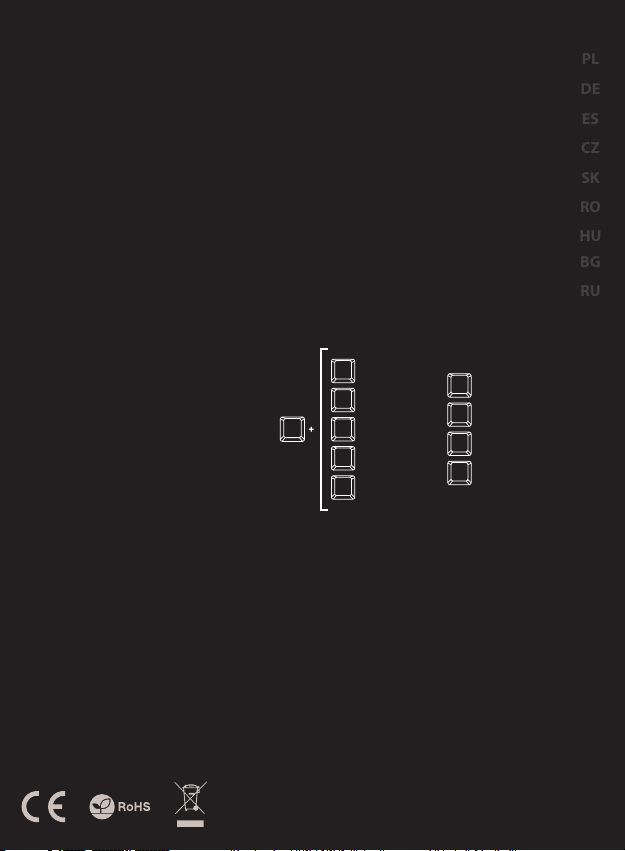
ARROW FUNCTION CHANGE
Press [ Fn ] + [ W ] to swap arrow function with WASD
keys function.
BACKLIGHT MODE CHANGE
Press the keys [ Fn ] + [ 1 ] ... [ 9 ] to change between 9
backlight modes.
SPEED OF BACKLIGHT
EFFECTS
To change the backlight brightness level press keys
[ Fn ] + [ Arrow Up ] / [ Arrow Down ]
Note: This function works only in modes [ Fn ] + [ 1 ],
[ Fn ] + [ 2 ], [ Fn ] + [ 3 ], [ Fn ] + [ 4 ], [ Fn ] + [ 6 ]
and [ Fn ] + [ 8 ]
BACKLIGHT BRIGHTNESS
To change the backlight brightness level press keys
[ Fn ] + [ Page Up ] / [ Page Dn ]
Note: This function works only in modes [ Fn ] + [ 5 ] and
[ Fn ] + [ 7 ]
CUSTOM MODE
Custom mode allows you to set the individual
illumination of each zone:
1. Hold [ Fn ] button and double press button [ 7 ] to
enter into “Custom Mode”.
2. Press the [ Fn ] + arrow Up/Down to change color.
3. Press the [ Fn ] + arrow Right/Left to move
between 6 zones.
4. Hold [ Fn ] button and double press button [ 7 ] to
save settings.
EN
PL
DE
ES
CZ
SK
RO
HU
BG
RU
SAFETY INFORMATION
GENERAL
Use as directed.
Non-authorized repairs or taking the device to pieces make the warranty
void and may cause the product damage.
Avoid to hit or friction with a hard object, otherwise it will lead to grind
surface or other hardware damage.
Do not use the product in low and high temperatures, in strong magnetic
fields and in the damp or dusty atmosphere.
Do not drop, knock, or shake the device. Rough handling can break it.
Slots and openings in the case are provided for ventilation and should not
be obscure. Blocking the vents can cause overheating of the device.
• The safe product, conforming to the EU requirements.
• The product is made in accordance with RoHS European standard.
The WEEE symbol (the crossed-out wheeled bin) using indicates that
this product in not home waste. Appropriate waste management aids
in avoiding consequences which are harmful for people and
environment and result from dangerous materials used in the device,
as well as improper storage and processing. Segregated household
waste collection aids recycle materials and components of which the
device was made. In order to get detailed information about recycling
this product please contact your retailer or a local authority.
Fn
PRISMO effect
1
Wave effect 1
2
7 colors breathing
3
Wave effect 2
4
Single color
5
6
Wave effect 3
7
Custom mode
8
Touch response effect
Sound response effect
9
Descargue el manual en Español (PDF, 0.19 MB)
(Piense en el medioambiente y solo imprima este manual si es de verdad necesario)

Loading…

Puntuación

Dé su opinión de la Genesis Lith 400 RGB Teclado calificando el producto. ¿Quiere compartir su experiencia con este producto o hacer una pregunta? Deje un comentario en la parte inferior de la página.
¿Estás satisfecho con elGenesis Lith 400 RGB Teclado?
No
Sea el primero en calificar este producto
0 votos

Únase a la conversación sobre este producto

Aquí puedes compartir lo que piensas sobre Genesis Lith 400 RGB Teclado. Si tiene alguna pregunta, primero lea atentamente el manual. Puede solicitar un manual utilizando nuestro formulario de contacto.

Más sobre este manual

Entendemos que es bueno tener un manual en papel para tus Genesis Lith 400 RGB Teclado. Siempre puedes descargar el manual desde nuestro sitio web e imprimirlo tú mismo. Si deseas tener un manual original te recomendamos contactar con Genesis. Es posible que puedan proporcionar un manual original. ¿Estás buscando el manual de tu Genesis Lith 400 RGB Teclado en otro idioma? Elija su idioma preferido en nuestra página de inicio y busque el número de modelo para ver si lo tenemos disponible.

Especificaciones

Marca Genesis
Modelo Lith 400 RGB
Categoría Teclados
Tipo de archivo PDF
Tamaño del archivo 0.19 MB

Todos los manuales para Genesis Teclados
Más manuales de Teclados

Preguntas frecuentes sobre Genesis Lith 400 RGB Teclado

Nuestro equipo de atención al cliente busca información útil sobre los productos y responde a las preguntas frecuentes. Si encuentra inexactitudes en las preguntas frecuentes, indíquenoslo usando nuestro formulario de contacto.

Las letras del teclado no están en las posiciones a las que estoy acostumbrado. ¿Por qué? Verificado

La mayoría de los teclados son de configuración QWERTY, que indica las seis primeras letras del teclado. Sin embargo, hay diferentes diseños de teclado que se ajustan a las necesidades específicas de un determinado idioma. También es posible que las teclas se hayan intercambiado. Sobre todo con los teclados antiguos esto es fácil de hacer.

Ha sido de gran ayuda (1358) Leer más

¿Cuál es la mejor forma de limpiar mi teclado? Verificado

Nunca inserte objetos entre los bordes de las teclas, ya que esto empujará principalmente suciedad y dañará el teclado. Es mejor limpiar el teclado con aire comprimido manteniendo el teclado boca abajo. La parte superior de las teclas se puede limpiar con un paño ligeramente húmedo.

Ha sido de gran ayuda (201) Leer más
Manual de uso Genesis Lith 400 RGB Teclado

Productos relacionados

Categorias relacionadas

×
Download