Manual de uso Hitachi 50HK5000 Televisor de LED

¿Necesita un manual para su Hitachi 50HK5000 Televisor de LED? A continuación puedes ver y descargar el manual en PDF gratis en español. Este producto actualmente tiene 12 preguntas frecuentes, 0 comentarios y tiene 0 votos. Si este no es el manual que desea, , contáctenos.

¿Su producto tiene algún defecto y el manual no ofrece ninguna solución? Vaya a Repair Café para solicitar un servicio de reparación gratuito.

Manual de uso

Loading…
English - 5 -
 Teletext
 Headphone connection
 Automatic programming system
 Manual tuning
 Automatic power down after up to eight hours.
 Sleep timer
 Child lock
 Automatic sound mute when no transmission.
 NTSC playback
 AVL (Automatic Volume Limiting)
 PLL (Frequency Search)
 PC input
 Game Mode (Optional)
 Picture off function
 Programme recording
 Programme timeshifting
 Pixellence
 Ethernet (LAN) for Internet connectivity and service
 802.11 a/b/g/n built in WLAN Support
 Audio Video Sharing
 HbbTV
Ultra HD (UHD)
79VXSSRUWV 8OWUD +' 8OWUD +LJK'H¿QLWLRQ DOVR
known as 4K) which provides resolution of 3840 x
2160 (4K:2K). It equals 4 times the resolution of Full
HD TV by doubling the pixel count of the Full HD TV
both horizontally and vertically. Ultra HD contents are
supported from HDMI, USB inputs and over DVB-T2
and DVB-S2 broadcasts.
High Dynamic Range (HDR) / Hybrid Log-Gamma
(HLG)
Using this feature the TV can reproduce greater
dynamic range of luminosity by capturing and then
combining several different exposures. HDR/HLG
promises better picture quality thanks to brighter, more
realistic highlights, more realistic colour and other
LPSURYHPHQWV,W GHOLYHUV WKH ORRN WKDW¿OPPDNHUV
intended to achieve, showing the hidden areas of
dark shadows and sunlight with full clarity, colour and
detail. HDR/HLG contents are supported via native
and market applications, HDMI, USB inputs and over
DVB-S broadcasts. Set the related HDMI source
input as Enhanced from the Sources option in the
Settings>System menu in order to watch HDR/HLG
content, if the HDR/HLG content is received through
an HDMI input. The source device should also be at
least HDMI 2.0a compatible in this case.
Dolby Vision
Dolby Vision™ delivers a dramatic visual experience,
astonishing brightness, exceptional contrast, and vivid
colour, that brings entertainment to life. It achieves this
stunning image quality by combining HDR and wide
colour gamut imaging technologies. By increasing the
brightness of the original signal and using a higher dy-
namic colour and contrast range, Dolby Vision presents
amazing true-to-life images with stunning detail that
other post-processing technologies in the TV aren’t
able to produce. Dolby Vision is supported via native
and market applications, HDMI and USB inputs. In
the Settings>Picture>Mode PHQX WZR SUHGH¿QHG
picture modes will be available if Dolby Vision content
is detected: Dolby Vision Bright and Dolby Vision
Dark. Both allow the user to experience the content
in the way the creator originally intended with different
ambient lighting conditions.
Accessories Included
 Remote Control
 Batteries: 2 x AAA
 Instruction Book
OLED TV Operations
OLED panels have some procedures in order to extend
the panel lifetime and provide protection from image
sticking problem.
OLED Fast Panel Clean
 After every 4 hours of use, the TV will perform OLED
Fast Panel Clean operation automatically when next
time the TV is switched into standby mode. If the TV
is in Store Mode this operation will be performed
every time the TV is switched into the standby mode.
 It will take about 6 minutes. In order not to interrupt
the operation it is recommended to wait until the
operation is completed.
 The LED will be blinking during the operation.
 When the operation is complete, the TV will switch
into standby mode.
 This operation can be interrupted by cutting the
power supply to the TV or switching the TV on. In
this case OLED Fast Panel Clean operation will
performed when next time the TV is switched into
standby mode.
 This operation can be performed manually
using the OLED Fast Panel Clean option in the
Settings>Picture>Advanced Settings menu. In this
case. This operation will take about 10 minutes and
then the TV will be switched off automatically. Do not
unplug the mains lead during this period.
ON-RF
 This operation will be performed automatically every
time the TV is switched on.
English - 6 -
 Do not do anything during boot-up procedure. Do
not interrupt the process.
 ,W ZLOOWDNHDERXWVHFRQGV IRU WKH¿UVWSLFWXUHWR
appear on the screen.
 The boot logo will thus appear later and will remain
for a lesser period of time on the screen.
OLED Panel Noise Clean
 This operation will be performed automatically at any
time of the day when the TV is switched into standby
mode after every 1500 hours of use.
 First, OLED Fast Panel Clean operation will be
performed when the TV is switched into standby
mode.
 Then the TV will remain in standby mode for a period
of 1 hour in order to cool down the panel.
 After a period of 1 hour in standby mode the TV will
switch on with blank screen and OLED Panel Noise
Clean function will be performed if the panel is at
proper temperature.
 This will take about 1 minute and during the operation
the LED will blink and a horizontal line will appear
on the screen, moving from the top to the bottom
of the screen.
 After OLED Panel Noise Clean operation is
completed the TV will switch into standby mode.
 OLED Panel Noise Clean operation can be
interrupted at any time by cutting the power supply
to the TV or switching the TV on.
 If OLED Panel Noise Clean operation is interrupted
a massage will appear on the screen stating that
the OLED Panel Noise Clean operation was
interrupted when next time the TV is switched on.
In this case OLED Panel Noise Clean operation
will be performed when next time the TV is switched
into standby mode.
 This operation can be performed manually using
the OLED Panel Noise Clean option in the
Settings>Picture>Advanced Settings menu. This
operation will take about 1 hour and then the TV will
be switched off automatically. Do not unplug the
mains lead during this period. It is not recommended
to perform this operation more than once a year or
unless requested by authorised service personnel.
Pixel Shifting
 The images will be automatically shifted one pixel
every three minutes to prevent image sticking.
6WDQGE\1RWL¿FDWLRQV
If the TV does not receive any input signal (e.g. from
an
aerial or HDMI source) for 3 minutes, it will go
into standby. When you next switch-on, the following
message will be displayed:
TV switched to stand-by
mode automatically because there was no signal
for a long time.
Press OK to continue.
The Auto TV OFF option(in the Settings>System
>More menu) could have been set to a value between
1 and 8 hours by default. If this setting is not set as Off
and the TV has been left on and not been operated
during the set time, it will switch into standby mode
after the set time has expired. When you next switch-on
the TV, the following message will be displayed. TV
switched to stand-by mode automatically because
no operation was made for a long time.
Press OK
to continue.
Before the TV switches into standby mode
a dialogue window will be displayed. If you do not
press any button the TV will switch into the standby
mode after a waiting period of about 5 minutes. You
can highlight Yes and press OK to switch the TV into
standby mode immediately. If you highlight No and
press OK, the TV will remain on. You can also choose
to cancel the Auto TV OFF function from this dialogue.
Highlight Disable and press OK, the TV will remain on
and the function will be cancelled. You can enable this
function again by changing the setting of the Auto TV
OFF option from the Settings>System>More menu.
TV Control & Operation




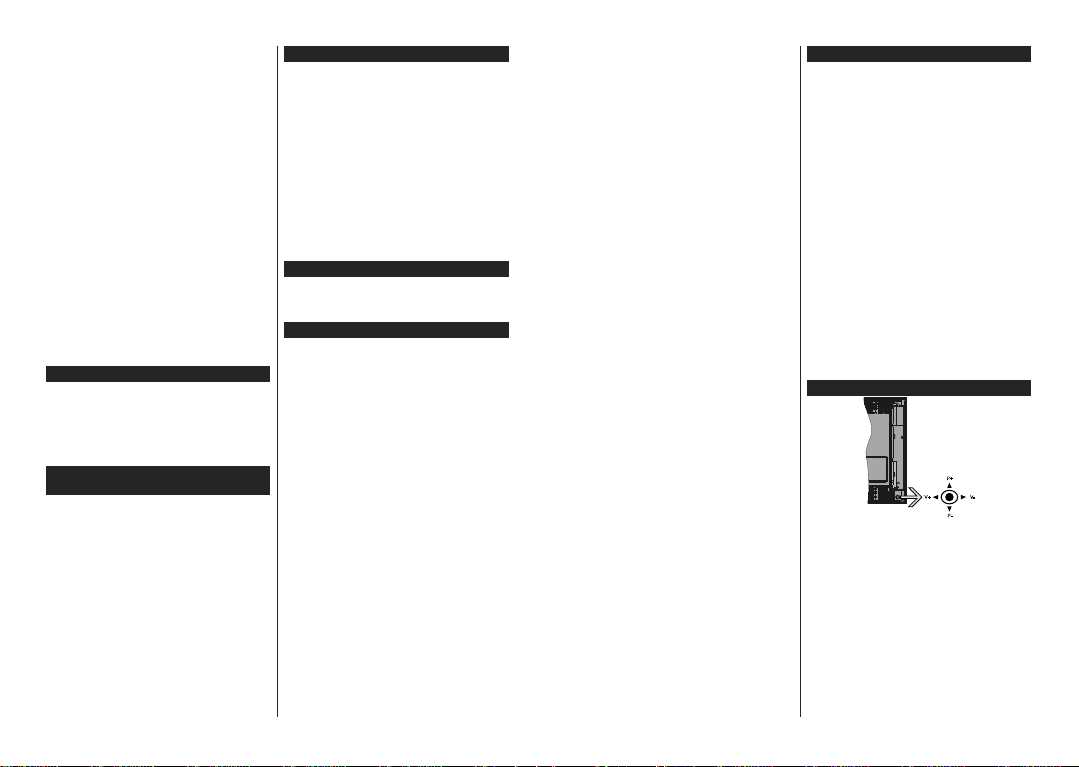
The joystick allows you to control the Volume /
Programme / Source and Standby-On functions of
the TV.
Note: The position of the joystick may differ depending on
the model.
To change volume: Increase the volume by pushing
the joystick right. Decrease the volume by pushing
the joystick left.
To change channel: Scroll through the stored
channels by pushing the joystick up or down.
To change source: Press the centre of the joystick
in, the sources list will appear on the screen. Scroll
through the available sources by pushing the joystick
up or down.
Descargue el manual en Español (PDF, 5.21 MB)
(Piense en el medioambiente y solo imprima este manual si es de verdad necesario)

Loading…

Puntuación

Dé su opinión de la Hitachi 50HK5000 Televisor de LED calificando el producto. ¿Quiere compartir su experiencia con este producto o hacer una pregunta? Deje un comentario en la parte inferior de la página.
¿Estás satisfecho con elHitachi 50HK5000 Televisor de LED?
No
Sea el primero en calificar este producto
0 votos

Únase a la conversación sobre este producto

Aquí puedes compartir lo que piensas sobre Hitachi 50HK5000 Televisor de LED. Si tiene alguna pregunta, primero lea atentamente el manual. Puede solicitar un manual utilizando nuestro formulario de contacto.

Más sobre este manual

Entendemos que es bueno tener un manual en papel para tus Hitachi 50HK5000 Televisor de LED. Siempre puedes descargar el manual desde nuestro sitio web e imprimirlo tú mismo. Si deseas tener un manual original te recomendamos contactar con Hitachi. Es posible que puedan proporcionar un manual original. ¿Estás buscando el manual de tu Hitachi 50HK5000 Televisor de LED en otro idioma? Elija su idioma preferido en nuestra página de inicio y busque el número de modelo para ver si lo tenemos disponible.

Especificaciones

Marca Hitachi
Modelo 50HK5000
Categoría Televisores de LED
Tipo de archivo PDF
Tamaño del archivo 5.21 MB

Todos los manuales para Hitachi Televisores de LED
Más manuales de Televisores de LED

Preguntas frecuentes sobre Hitachi 50HK5000 Televisor de LED

Nuestro equipo de atención al cliente busca información útil sobre los productos y responde a las preguntas frecuentes. Si encuentra inexactitudes en las preguntas frecuentes, indíquenoslo usando nuestro formulario de contacto.

¿Cómo conecto un mando a distancia universal a mi televisor? Verificado

Para conectar su mando a distancia universal, necesita el número de modelo y la marca del mando a distancia y del televisor. Encontrará una lista de códigos de marcas y números de modelo en el manual del mando a distancia.

Ha sido de gran ayuda (5069) Leer más

Quiero conectar un altavoz a mi televisor led con HDMI. ¿Qué puerto debo usar? Verificado

Debe usar el puerto HDMI-ARC, que está hecho específicamente para conectar equipos de audio.

Ha sido de gran ayuda (2360) Leer más

¿Importa a qué puerto HDMI conecto mi dispositivo? Verificado

Por norma general, puede conectar un dispositivo como un reproductor Blu-ray o una videoconsola a cualquier puerto HDMI. A continuación debe seleccionar el canal HDMI correspondiente en su televisor para usar el dispositivo.

Ha sido de gran ayuda (1184) Leer más

¿Cómo mido las pulgadas de mi televisor LED? Verificado

Para medir las pulgadas de su televisor LED, debe medir la diagonal, por ejemplo, entre la esquina superior izquierda y la esquina inferior derecha de la pantalla (no del marco). Una pulgada equivale a 2,54 centímetros, de manera que, cuando mide 99 centímetros, quiere decir que su televisor LED es de 39 pulgadas.

Ha sido de gran ayuda (940) Leer más

¿Funcionará mi mando a distancia también en otros modelos de televisores de la misma marca? Verificado

A menudo, un control remoto de un televisor también funcionará en modelos similares de la misma marca. Sin embargo, es inusual que funcione en todos los modelos de esa marca. Los controles remotos universales son más adecuados para hacer esto.

Ha sido de gran ayuda (665) Leer más

¿Cuál es la diferencia entre LCD y LED? Verificado

Ambas técnicas utilizan una pantalla LCD que no emite luz por sí misma. La diferencia está en la iluminación detrás de la pantalla. En el caso de las pantallas LCD esto se realiza mediante CCFL (lámpara fluorescente de cátodo frío), mientras que con televisores LED se emplean luces led.

Ha sido de gran ayuda (530) Leer más

¿Qué significa HDMI? Verificado

HDMI son las siglas de High-Definition Multimedia Interface. HDMI es una conexión para enviar video y audio de alta calidad de un dispositivo a otro.

Ha sido de gran ayuda (455) Leer más

¿Puedo reparar un píxel muerto yo mismo? Verificado

Hay una diferencia entre un pixel muerto y un pixel atascado. Un píxel atascado todavía está coloreado y puede repararse al aplicar una ligera presión exactamente sobre el píxel hasta que se restaure por sí mismo. Un píxel muerto siempre es blanco o negro y no lo puede reparar usted mismo.

Ha sido de gran ayuda (424) Leer más

¿Qué es la relación de contraste? Verificado

La relación de contraste indica la diferencia entre el blanco más blanco y el negro más negro. De este modo, una relación de contraste de 400:1 significa que el negro más negro de la pantalla es 400 veces más oscuro que el blanco más blanco. Una alta relación de contraste contribuye a la nitidez de la imagen.

Ha sido de gran ayuda (401) Leer más

¿Por qué hay letras junto a los números en el control remoto? Verificado

Algunas configuraciones de televisión pueden requerir que ingrese letras. Por lo general, hay tres letras u otros caracteres en un botón. Cuando se requiera ingresar una letra, puede presionar ese botón una vez para la primera letra, presionar dos veces para la segunda letra y presionar 3 veces para la tercera letra. De esta forma, el texto se puede escribir con un número mínimo de botones.

Ha sido de gran ayuda (352) Leer más

¿Cuál es la distancia óptima para ver la tele? Verificado

Depende en parte de las preferencias personales, pero como regla general la distancia óptima de visión es de unas 3 veces el tamaño diagonal de la pantalla del televisor. Para un televisor de 60 pulgadas (152 cm) la distancia óptima de visión sería de 180 pulgadas o unos 4,5 metros.

Ha sido de gran ayuda (352) Leer más

¿Cómo puedo limpiar correctamente mi televisor led? Verificado

Apague el televisor y quite el polvo y la suciedad de la pantalla usando un paño de microfibra. No use papel, ya que puede causar rayaduras. No aplique demasiada presión o podría dañar los píxeles. Use un detergente especial o mézclelo usted mismo con una parte de vinagre y otra de agua. Humedezca el paño con el detergente y limpie la pantalla. Asegúrese de que el paño no esté demasiado húmedo. Elimine las manchas haciendo movimientos giratorios. Seque la pantalla con otro paño de microfibra para evitar las rayas.

Ha sido de gran ayuda (351) Leer más
Manual de uso Hitachi 50HK5000 Televisor de LED

Productos relacionados

Categorias relacionadas

×
Download