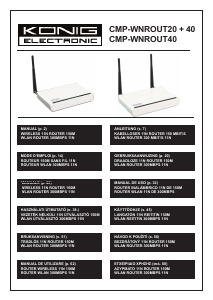
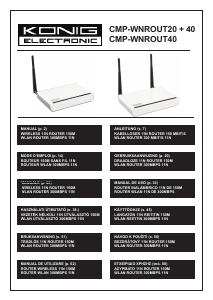
Manual de uso König CMP-WNROUT40 Router

¿Necesita un manual para su König CMP-WNROUT40 Router? A continuación puedes ver y descargar el manual en PDF gratis en español. Este producto actualmente tiene 2 preguntas frecuentes, 1 comentario y tiene 0 votos. Si este no es el manual que desea, , contáctenos.

¿Su producto tiene algún defecto y el manual no ofrece ninguna solución? Vaya a Repair Café para solicitar un servicio de reparación gratuito.

Manual de uso

Loading…

3
Chapter 3: How to Login to the Router
3.1 How to Set the Network Configuration
1. On your computer desktop right click “My Network Places” and select “Properties”.
2. Right click “Local Area Network Connection” and select “Properties”.
3. Select “Internet Protocol (TCP/IP)” and click “Properties”.
4. - Select “Obtain an IP address automatically” and “Obtain DNS server address automatically”. Click “OK” to save the
configuration.
- Or select “Use the following IP address” and enter the IP address, subnet mask, default gateway as follows: IP
Address: 192.168.0.XXX: (XXX is a number from 2~254) Subnet Mask: 255.255.255.0
Gateway: 192.168.0.1. Certainly you need to input the DNS server address provided by your ISP. Otherwise, you can
use the router’s default gateway as the DNS proxy server. Click “OK” to save the conguration.
3.2 Login to the Router
1. To access the router’s web-based interface, launch a web browser such as Internet Explorer or Firefox and enter the
router’s default IP address, http://192.168.0.1. Press “Enter”.
2. Input the “admin” in both User Name and Password. Click “OK”.
Chapter 4: Quick Setup Guide
4.1 Setup Wizard
Here is the “Welcome to Setup Wizard” for conguring your Router quickly. Click “Next”.
In this screen, select one mode of your Internet connection you use. If you are not clear, press the “Detect” button or
contact your Internet Service Provider, and click “Next”.
ADSL Virtual Dial-up (Via PPPoE)
Enter the Account and Password provided by your ISP, and click “Next”.
Dynamic IP (Via DHCP)
If your connection mode is Dynamic IP, it means your IP address keeps changing every time you connect. You do not
need to enter the information like other modes. Click “Next” and “Save” to nish the setting.
Static IP
In this screen, ll the network address information from your ISP in the IP Address, Subnet Mask, Gateway and Primary
DNS server elds and click “Next”.
L2TP
Consult your ISP for the required information.
Chapter 5: Advanced Settings
5.1 LAN Settings
LAN Settings are for the basic TCP/IP parameters of LAN ports.
IP Address: The Router’s LAN IP addresses (not your PC’s IP address). 192.168.0.1 is the default value.
Subnet Mask: Shows the router’s subnet mask for measurement of the network size. 255.255.255.0 is the default
value.
IMPORTANT:
Once you modify the IP address, you need to remember it for the web-based utility login next time.
5.2 WAN Settings
After you have selected the ISP connection type in “Setup Wizard” and you want to modify the related settings, here you
can modify and congure the settings in details.
Static IP
If connection mode static IP is selected, you can modify the following address information.
IP Address: Here enter the WAN IP address provided by your ISP.
Subnet Mask: Enter the WAN subnet mask here.
Gateway: Enter the WAN gateway here.
Primary DNS Server: Enter the primary DNS server provided by your ISP.
Secondary DNS Server: Enter the secondary DNS.
Descargue el manual en Español (PDF, 0.99 MB)
(Piense en el medioambiente y solo imprima este manual si es de verdad necesario)

Loading…

Puntuación

Dé su opinión de la König CMP-WNROUT40 Router calificando el producto. ¿Quiere compartir su experiencia con este producto o hacer una pregunta? Deje un comentario en la parte inferior de la página.
¿Estás satisfecho con elKönig CMP-WNROUT40 Router?
No
Sea el primero en calificar este producto
0 votos

Únase a la conversación sobre este producto

Aquí puedes compartir lo que piensas sobre König CMP-WNROUT40 Router. Si tiene alguna pregunta, primero lea atentamente el manual. Puede solicitar un manual utilizando nuestro formulario de contacto.

Roel 23-05-2021
Hola, ¿el enrutador König CMP-WNROUT40 también se puede configurar en modo puente?

responder | Ha sido de gran ayuda (0) (Traducido por Google)

Más sobre este manual

Entendemos que es bueno tener un manual en papel para tus König CMP-WNROUT40 Router. Siempre puedes descargar el manual desde nuestro sitio web e imprimirlo tú mismo. Si deseas tener un manual original te recomendamos contactar con Konig. Es posible que puedan proporcionar un manual original. ¿Estás buscando el manual de tu König CMP-WNROUT40 Router en otro idioma? Elija su idioma preferido en nuestra página de inicio y busque el número de modelo para ver si lo tenemos disponible.

Especificaciones

Marca Konig
Modelo CMP-WNROUT40
Categoría Routers
Tipo de archivo PDF
Tamaño del archivo 0.99 MB

Todos los manuales para König Routers
Más manuales de Routers

Preguntas frecuentes sobre König CMP-WNROUT40 Router

Nuestro equipo de atención al cliente busca información útil sobre los productos y responde a las preguntas frecuentes. Si encuentra inexactitudes en las preguntas frecuentes, indíquenoslo usando nuestro formulario de contacto.

¿Cómo puedo optimizar la señal de mi enrutador? Verificado

Empiece por ajustar la ubicación y la posición del enrutador para intentar mejorar la señal. Si esto no funciona, a menudo es posible cambiar el canal inalámbrico de su enrutador. Existe la posibilidad de que otros dispositivos inalámbricos estén usando el mismo canal inalámbrico, lo que puede disminuir la intensidad de la señal.

Ha sido de gran ayuda (1252) Leer más

¿Cuál es la diferencia entre un enrutador y un módem? Verificado

Un módem facilita la conexión a internet a través de su proveedor. Un enrutador distribuye esta señal a diferentes dispositivos dentro de una red. La mayoría de los enrutadores modernos tienen un módem incorporado.

Ha sido de gran ayuda (179) Leer más
Manual de uso König CMP-WNROUT40 Router

Productos relacionados

Categorias relacionadas

×
Download