Manual de uso Microsoft Zune HD Reproductor de Mp3

¿Necesita un manual para su Microsoft Zune HD Reproductor de Mp3? A continuación puedes ver y descargar el manual en PDF gratis en español. Este producto actualmente tiene 4 preguntas frecuentes, 0 comentarios y tiene 0 votos. Si este no es el manual que desea, , contáctenos.

¿Su producto tiene algún defecto y el manual no ofrece ninguna solución? Vaya a Repair Café para solicitar un servicio de reparación gratuito.

Manual de uso

Loading…

f
f
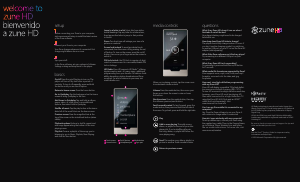
setup
Before connecting your Zune to your computer,
visit www.zune.net/setup to install the latest version
of the Zune software.
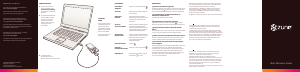
Connect your Zune to your computer.
Your Zune charges whenever its connected. First
charge might take an hour or more.
Sync your stuff:
In the Zune software, set sync options in Software
Settings or drag and drop items to the player.
On/off Press the on/off button to turn on. The
player will turn off by itself after a period of
inactivity. To turn it off manually, press and hold
the button until you see the off option.
Return to home screen Press the home button.
Go to Quickplay Tap the background on the home
screen to bring Quickplay to the fore.
Add items to Quickplay Tap and hold an album,
genre, video, or other item to see additional
options, then select Add to Quickplay.
Shufe all music Tap the play button at the imme-
diate left of the word Music on the home screen.
Previous screen Press the magnied text at the
top of the screen or the virtual back button (when
visible).
Playback options Buttons to shufe, repeat, and
rate songs appear along the bottom of the now-
playing screen.
Playlists To save a playlist of the songs you’re
listening to: go to Music, Playlists, Now Playing
and click the Save button.
basics
questions
media controls
Jump to a letter in a list Music lists have alpha-
betical headings. Tap any letter for a letter menu,
then tap another letter to jump to that position
in the list.
Zoom Two short taps will enlarge your view of a
picture or a website.
Screen lock/unlock To avoid accidental touch
commands, turn the screen off by pressing the on/
off button. To turn on the screen, press the on/off
button, then move your nger across the screen to
unlock it.
PIN lock/unlock Use PIN lock to require a 4-digit
code for screen access. You can enable/disable PIN
lock in Settings.
HD Radio Zune HD supports HD Radio
TM
, offering
digital reception andin many casesadditional
programming from your favorite FM stations. Avail-
ability depends on station broadcasts and Zune
reception. For a list of stations in your area, visit
www.hdradio.com.
When youre playing content, tap the screen once
to access basic media controls.
Volume Press the media button, then move your
nger up or down the screen to raise or lower
the volume.
Next/previous Press the media button, then tap
the onscreen previous/next buttons.
Fast-forward/rewind To fast-forward, press the
media button, then press and hold the left side of
the screen. To go back, press and hold the right side.
What if my Zune HD doesnt turn on when I
rst take it out of the box?
Your player’s battery might need to be charged
before rst use.
How long does Zune HD take to charge?
The player should fully charge in about 2 hours. If
you don’t see the charging symbol, try switching
to another USB port on your PC or use the Zune AC
adapter (sold separately).
What if the Zune software can’t nd my player?
Try connecting to a different USB port on your
computer.
What if my Zune HD isn’t responding?
Try restarting it: press and hold the on/off button
for 7 seconds.
What media le formats are supported by Zune?
Zune supports .wma, .mp4, .m4a, .m4b, and .mp3
for audio; .wmv and .m4v for video; and .jpg
for photos.
How can I view high-denition programming
with my Zune HD?
Zune HD will display compatible 720p high-deni-
tion sources on its built-in screen (480 × 272).
To view HD sources at true high-denition resolution,
however, your Zune HD must be playing HD
les while connected to a high-denition TV
using the Zune HD & AV Dock and an HDMI
TM
cable (both sold separately). Visit
www.zune.net for more info.
Can I use my Zune while it’s connected to my
computer?
Yes. Close the Zune software to use your Zune. It
will continue to charge while it’s connected.
How do I sync wirelessly with my computer?
To set up wireless sync, connect your Zune using
the supplied sync cable. Then, in the Zune software,
go to Settings, Player, Wireless Sync and follow
the on-screen instructions. For more info, visit
www.zune.net/wireless.
Play
Add to now playing This adds a song,
album, or playlist to the end of your now-
playing list. If youre shufing all music,
the song, album, or playlist will follow the
now-playing song.
Send This sends a song, album, playlist, or
picture to another Zune members inbox.
Return to previous screen
Touch screen On/off button Media button
Home button Headphone jack Sync port
HD Radio technology is manufactured under license from
iBiquity Digital Corp. U.S. and foreign patents. HD Radio and
the HD Radio logo are proprietary trademarks of iBiquity
Digital Corp.
HDMI, the HDMI Logo, and High-Denition Multimedia
Interface are trademarks or registered trademarks of HDMI
Licensing LLC.
Be sure to check out www.zune.net/support for tips and
tricks and detailed product info.
See the Zune
TM
Product Guide for important safety
information and helpful tips.
©2009 Microsoft Corporation. All rights reserved.
Descargue el manual en Español (PDF, 1.91 MB)
(Piense en el medioambiente y solo imprima este manual si es de verdad necesario)

Loading…

Puntuación

Dé su opinión de la Microsoft Zune HD Reproductor de Mp3 calificando el producto. ¿Quiere compartir su experiencia con este producto o hacer una pregunta? Deje un comentario en la parte inferior de la página.
¿Estás satisfecho con elMicrosoft Zune HD Reproductor de Mp3?
No
Sea el primero en calificar este producto
0 votos

Únase a la conversación sobre este producto

Aquí puedes compartir lo que piensas sobre Microsoft Zune HD Reproductor de Mp3. Si tiene alguna pregunta, primero lea atentamente el manual. Puede solicitar un manual utilizando nuestro formulario de contacto.

Más sobre este manual

Entendemos que es bueno tener un manual en papel para tus Microsoft Zune HD Reproductor de Mp3. Siempre puedes descargar el manual desde nuestro sitio web e imprimirlo tú mismo. Si deseas tener un manual original te recomendamos contactar con Microsoft. Es posible que puedan proporcionar un manual original. ¿Estás buscando el manual de tu Microsoft Zune HD Reproductor de Mp3 en otro idioma? Elija su idioma preferido en nuestra página de inicio y busque el número de modelo para ver si lo tenemos disponible.

Especificaciones

Marca Microsoft
Modelo Zune HD
Categoría Reproductores de Mp3
Tipo de archivo PDF
Tamaño del archivo 1.91 MB

Todos los manuales para Microsoft Reproductores de Mp3
Más manuales de Reproductores de Mp3

Preguntas frecuentes sobre Microsoft Zune HD Reproductor de Mp3

Nuestro equipo de atención al cliente busca información útil sobre los productos y responde a las preguntas frecuentes. Si encuentra inexactitudes en las preguntas frecuentes, indíquenoslo usando nuestro formulario de contacto.

Cuando conecto un auricular a mi dispositivo, no funciona correctamente, ¿qué puedo hacer? Verificado

Es posible que se haya acumulado suciedad en la abertura donde está conectado el auricular, impidiendo que haga un contacto adecuado. La mejor forma de limpiarlo es con aire comprimido. En caso de duda, haga que lo haga un profesional.

Ha sido de gran ayuda (51) Leer más

¿Cuál es la diferencia entre MP3, WAV, AIFF y FLAC? Verificado

La diferencia es que WAV, AIFF y FLAC son tipos de archivo sin pérdida de calidad mientras que MP3 es un tipo de archivo “con pérdida”. Esto significa que para crear un MP3 el archivo se comprime más, por lo que estos archivos son más pequeños. La desventaja es que se pierde en calidad.

Ha sido de gran ayuda (37) Leer más

¿Qué significa Mp3? Verificado

Mp3 es la abreviatura de MPEG3, que son las siglas en inglés para Grupo de Expertos en Imágenes en Movimiento Capa de Audio 3. Mp3 es el formato de archivo más utilizado para almacenar y reproducir música u otros tipos de audio.

Ha sido de gran ayuda (26) Leer más

¿Cuántos bytes son un kilobyte, megabyte, gigabyte y terabyte? Verificado

Un kilobyte consta de 1000 bytes. 1 megabyte = 1000 kilobytes. 1 gigabyte = 1000 megabytes. 1 terabyte = 1000 gigabytes.

Ha sido de gran ayuda (22) Leer más
Manual de uso Microsoft Zune HD Reproductor de Mp3

Productos relacionados

Categorias relacionadas

×
Download