FR PL RU SE
1. Verbinde den USB-Stecker der ROCCAT™ Kova[+] mit
einer freien USB-Schnittstelle.
2. Starte deinen Computer und stelle eine Verbindung mit
dem Internet her.
3. Gebe in die Adresszeile deines Webbrowsers die folgende
URL ein „roccat.org/support“ und drücke Enter.
4. Klicke in der linken Navigationsleiste auf den Punkt
„ROCCAT Kova[+]“. Lade dir auf der sich öffnenden Seite
die neueste Treiber-Software herunter.
5. Starte die Treiber-Installation und folge bitte den weiteren
Anweisungen auf dem Bildschirm.
1. Forbind ROCCAT™ Kova[+] ‚s USB-stik med et ledigt
USB-interface.
2. Start din computer og forbind den med Internettet.
3. Indtast følgende URL i adresselinjen af din webbrowser
„roccat.org/support“ og tryk så Enter.
4. Klik i venstre navigantionslinje på punkt „ROCCAT
Kova[+]“. Frau den åbnede side overfører du den nyeste
driversoftware.
5. Start driver-installationen og følg anvisningerne på
billedskærmen.
1. Plug the ROCCAT™ Kova[+]’s USB connector into any
free USB port.
2. Boot your computer and connect to the internet.
3. Enter ‘roccat.org/support’ in your browser and
hit the return key.
4. In the navigation bar on the left, go to ‘ROCCAT Kova[+]’.
Download the latest driver from the webpage that opens.
5. Start the driver installation process and follow the
on-screen instructions.
1. Enchufa el conector USB del ROCCAT™ Kova[+] a un
puerto libre USB.
2. Inicia tu ordenador y establece la conexión de Internet.
3. Escribe en tu navegador Web la siguiente URL:
roccat.org/support y pulsa Enter.
4. En la barra izquierda de navegación haz clic en el
punto “ROCCAT Kova[+]”. En la página que se abre a
continuación descárga el software de controlador más
actualizado.
5. Inicia la instalación del controlador y sigue las instruccio-
nes que aparecen en pantalla.
1. Liitä ROCCAT™ Kova[+]:n USB-pistoke vapaaseen
USB-liitäntään.
2. Käynnistä tietokoneesi ja luo Internet-yhteys.
3. Kirjoita verkkoselaimesi osoiteriville seuraava URL-osoite
„roccat.org/support“ ja paina Enter.
4. Napsauta vasemmassa navigaatiopalkissa kohtaa
„ROCCAT Kova[+]“. Lataa avautuvalta sivulta uusin
ajuriohjelmisto.
5. Käynnistä ajurin asennus ja noudata näytöllä näkyviä
lisäohjeita.
DE DK EN ES FI
TR
1. Relie la fi che USB de la souris ROCCAT™ Kova[+] à une
prise USB libre.
2. Démarre ton ordinateur et connecte-toi à Internet.
3. Entre dans la barre d’adresse de ton navigateur l’URL
« roccat.org/support » et appuie sur Enter.
4. Clique dans le menu de navigation de gauche sur
« ROCCAT Kova[+] ». Télécharge la dernière version du
pilote sur la page qui s’ouvre alors.
5. Lance l’installation du pilote et suis les instructions qui
s’affi chent à l’écran.
1. Podłącz wtyk USB ROCCAT™ Kova[+] do wolnego
złącza USB.
2. Uruchom komputer i nawiąż połączenie z Internetem.
3. W wierszu adresowym przeglądarki wpisz adres URL
„roccat.org/support“ i naciśnij Enter.
4. W lewym pasku nawigacji kliknij punkt „ROCCAT Kova[+]“.
Z nowo otwartej strony pobierz najnowsze sterowniki.
5. Rozpocznij instalację sterowników i postępuj zgodnie z
instrukcjami na ekranie.
1. Соедини USB-штекер ROCCAT™ Kova[+] со свободным
USB-портом.
2. Запусти компьютер и выйди в интернет.
3. Введи в адресной строке браузера адрес
„roccat.org/support“ и нажми Enter.
4. Нажми на левой навигационной панели пункт
„ROCCAT Kova[+]“. Загрузи с открывшейся страницы
самые последние драйвера.
5. Запусти инсталляцию драйвера и следуй дальнейшим
указаниям на экране.
1. Sätt ROCCAT™ Kova[+] USB-kontakt i en ledig USB-port.
2. Starta datorn och koppla upp dig på Internet.
3. Skriv in följande URL i adressfältet på din webbläsare:
roccat.org/support. Tryck på Enter.
4. Klicka på ROCCAT Kova[+] i det vänstra navigationsfältet.
Ladda ner den senaste programvaran med drivrutin på
den sida som öppnas.
5. Starta installationen av drivrutin och följ anvisningarna
på skärmen.
1. ROCCAT™ Kova[+] USB fi şini boş bir USB girişine tak.
2. Bilgisayarı başlat ve internete bağlan.
3. Web tarayıcının adres satırına “roccat.org/support”
URL adresini gir ve Enter tuşuna bas.
4. Sol navigasyon çubuğundaki “ROCCAT Kova[+]” üzerine
tıkla. Açılan sayfadan en yeni sürücü yazılımını indir.
5. Sürücü kurulumunu başlat ve ekrandaki diğer talimatları
takip et.
ANLEITUNG INSTRUKTIONER INSTRUCTIONS INSTRUCCIONES OHJEET
INSTRUCTIONS INSTRUKCJA
ИНСТРУКЦИИ
INSTRUKTIONER TALIMATLAR
1
2
3
7
8
9
5
4
6
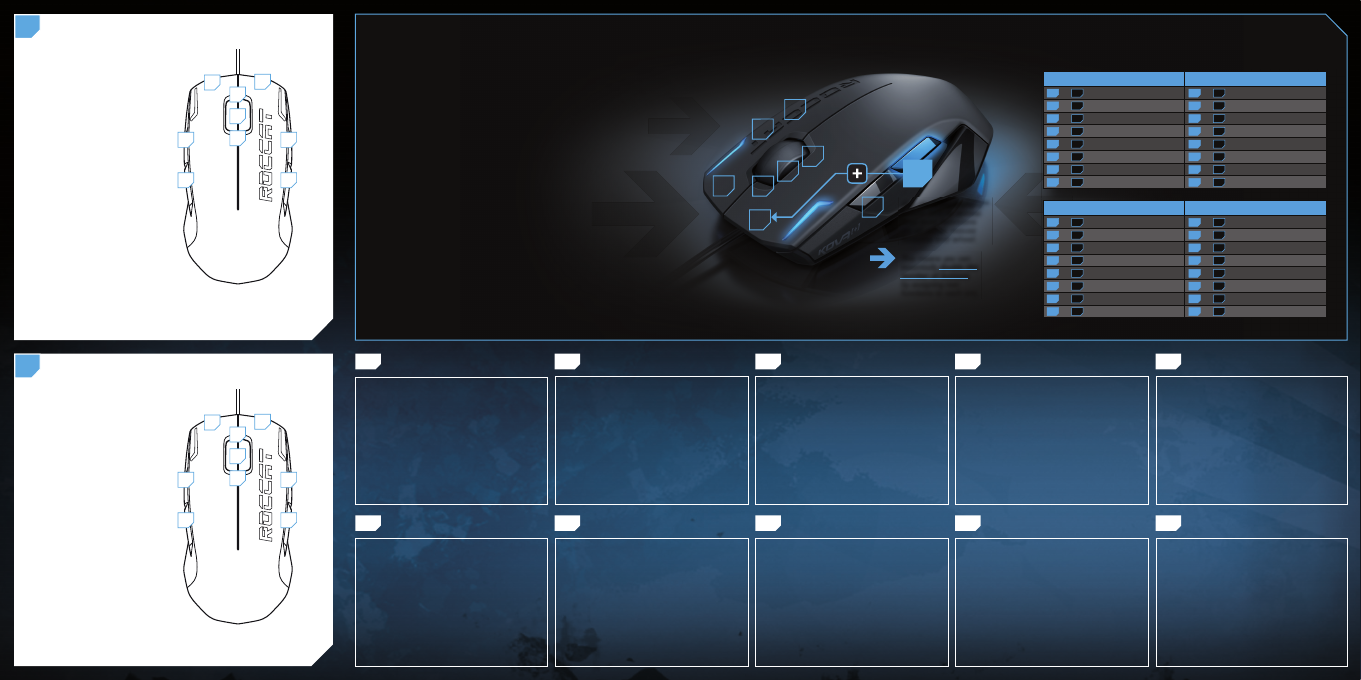
EASY-SHIFT[+]™ EXAMPLES:
Easy-Shift[+]™ WoW: Easy-Shift[+]™ CS:
5 + 1 = Mount up 5 + 1 = Throw HE
5 + 2 = Dismount 5 + 2 = Throw fl ash
5 + 3 = Autorun 5 + 3 = Throw smoke
5 + 4 = Use trinket 5 + 4 = Show scores
5 + 6 = Your macro #1 5 + 6 = Buy CT equipment
5 + 7 = Your macro #2 5 + 7 = Buy T equipment
5 + 8 = Pet attack 5 + 8 = Primary weapon
5 + 9 = Pet follow 5 + 9 = Secondary weapon
Easy-Shift[+]™ Multimedia: Easy-Shift[+]™ Browser:
5 + 1 = Previous track 5 + 1 = Page back
5 + 2 = Next track 5 + 2 = Page forward
5 + 3 = Mute volume 5 + 3 = New tab
5 + 4 = Switch to full screen 5 + 4 = Add bookmark
5 + 6 = Play or pause 5 + 6 = New window
5 + 7 = Stop playback 5 + 7 = Print page
5 + 8 = Volume up 5 + 8 = Switch to next tab
5 + 9 = Volume down 5 + 9 = Switch to previous tab
Use the Easy-Shift[+]™
button (#5) to access
2nd level functions
on all other mouse
buttons and wheel.
This means you can
essentially double the
number of buttons
by assigning two
functions to each one.
ROCCAT™ EASY-SHIFT
[
+
]™
THE DUAL ASSIGNMENT FUNCTION FOR MOUSE BUTTONS
EASY-SHIFT[+]™: ASSIGN DUAL FUNCTIONS TO THE MOUSE BUTTONS
Easy-Shift[+]™ lets you assign an extra function to your mouse buttons and
scroll-wheel (including mouse wheel directions: up, down, depressed) – which
effectively doubles the amount of functions you can peform.
The Easy-Shift[+]™ button works just like the shift key on a keyboard:
Hold it down while pressing one of the other standard mouse buttons and
you execute a second function.
PRACTICAL MACRO CONTROLS
The advantage of using the Easy-Shift[+]™ secondary button assignment feature
is evident, for example, when using the driver’s macro controls. Here you’ll fi nd
functions that let you launch and control your media player using just the mouse.
For instance, the mouse wheel, in conjunction with the Easy-Shift[+]™ button,
can be used to control volume level. You can also assign Previous track/Next
track functions to the left and right mouse buttons in combination with the
Easy-Shift[+]™ button.
In fact, shortcuts like these became so valuable to our beta testers, that after
only a short while they told us they couldn’t live without the Easy-Shift[+]™
button! Top ergonomics and maximum functionality have fi nally found a home in
the Kova[+].
B
5 + 1 = Page back (browser)
5 + 2 = Page forward (browser)
5 + 3 = Mute volume
5 + 4 = Disabled by default
(Install the driver to
assign a function.)
5 + 6 = Disabled by default
(Install the driver to
assign a function.)
5 + 7 = Disabled by default
(Install the driver to
assign a function.)
5 + 8 = Volume up
5 + 9 = Volume down
1
2
3
4
5
6
7
8
9
DEFAULT BUTTON ASSIGNMENT: EASY-SHIFT
[+] ™
(no driver installed)
A
1 = Left mouse button
2 = Right mouse button
3 = Middle mouse button &
universal scroll
4 = Page forward (browser)
5 = Easy-Shift[+]™ button
6 = Disabled by default
(Install the driver to
assign a function.)
7 = Disabled by default
(Install the driver to
assign a function.)
8 = Mouse wheel up
9 = Mouse wheel down
1
2
3
4
5
6
7
8
9
DEFAULT BUTTON ASSIGNMENT
(no driver installed)



Únase a la conversación sobre este producto
Aquí puedes compartir lo que piensas sobre Roccat Kova plus Ratón. Si tiene alguna pregunta, primero lea atentamente el manual. Puede solicitar un manual utilizando nuestro formulario de contacto.