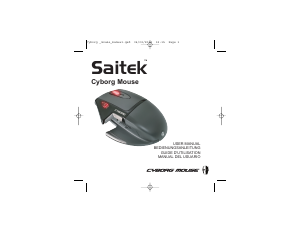
Manual de uso Saitek Cyborg V.3 Ratón

¿Necesita un manual para su Saitek Cyborg V.3 Ratón? A continuación puedes ver y descargar el manual en PDF gratis en español. Este producto actualmente tiene 4 preguntas frecuentes, 0 comentarios y tiene 0 votos. Si este no es el manual que desea, , contáctenos.

¿Su producto tiene algún defecto y el manual no ofrece ninguna solución? Vaya a Repair Café para solicitar un servicio de reparación gratuito.

Manual de uso

Loading…
System Compatibility
PC running Windows XP/XP64/Vista
Software installation for users of Windows® XP, XP64 and Vista
A) Drivers Only
1. With your computer switched on, close down any programs that are currently running and
insert the Installation CD into your CD-ROM drive.
2. When the Introduction Screen appears, click Install Software to continue. If the CD does not
run automatically, select Start from the Windows® Taskbar, then Run and type D:\Setup.exe
and click OK - where D:\ is letter of your CD-ROM drive. For Vista users, the screen will ask
Do you want to run this file? Press Run. A screen will now appear saying A program needs
your permission to continue. Press Continue.
3. When the Welcome screen appears, click Next to continue.
4. After reading the Disclaimer, select the I accept the terms of the Disclaimer option and click
Next to continue.
5. Plug the USB cable into one of your computer's USB ports and click on Next.
6. At the Registration screen, select Check this box to register now and follow the on-screen
instructions, or you can choose to select this option later.
7. Click on Finish to complete the installation.
B) Drivers and Programming Software
Follow points 1 - 7 of the install procedure in A), then at the Software Setup screen, select Install
the SST Programming Software and click Next. For Vista users, the screen will once again ask Do
you want to run this file? Press Run. A screen will now appear saying A program needs your
permission to continue. Press Continue.
In the following Software Setup screen, click Next and follow the on-screen instructions. At this
point Vista users will be asked to install the Saitek Magic Bus and XP users asked to install the
Saitek Magic Mouse, HID-compliant mouse, Saitek Magic Keyboard and HID Keyboard Device
(these are what Windows calls the Programming elements of your Saitek controller). Continue to
click on Next and Finish to accept the installation until the Registration screen appears.
At the Registration screen, select Check this box to register now and follow the on-screen
instructions, or do not select this option and register later.
Upon completion of the installation, you have the option to Run Profile Editor, which will give you a
view of the programming environment. If you do not wish to see the Profile Editor at this point, just
uncheck the box and click on Finish to complete the installation.
SAITEK CYBORG V.3 MOUSE
Getting Started
Congratulations on purchasing the Saitek Cyborg V.3 Mouse. The mouse offers a range of
programmable gaming functions, backlighting and gaming ergonomics, plus 2400 dpi resolution for
high-speed, highly accurate tracking.
Important Information
Some experts believe that using any mouse or trackball may cause serious injury to hands, wrists,
arms, neck, or back. If you feel pain, numbness, or weakness in these areas, please consult a
qualified health professional immediately.
To reduce the risk of injury, please follow these precautions:
Take frequent breaks, get up and walk around several times every hour.
Vary your tasks throughout the day.
Keep your shoulders relaxed with your elbows at your side. Position your keyboard and mouse
so you do not have to reach.
Adjust your chair and keyboard so your upper arms and wrists are straight.
Avoid resting your wrists on sharp edges.
2
3
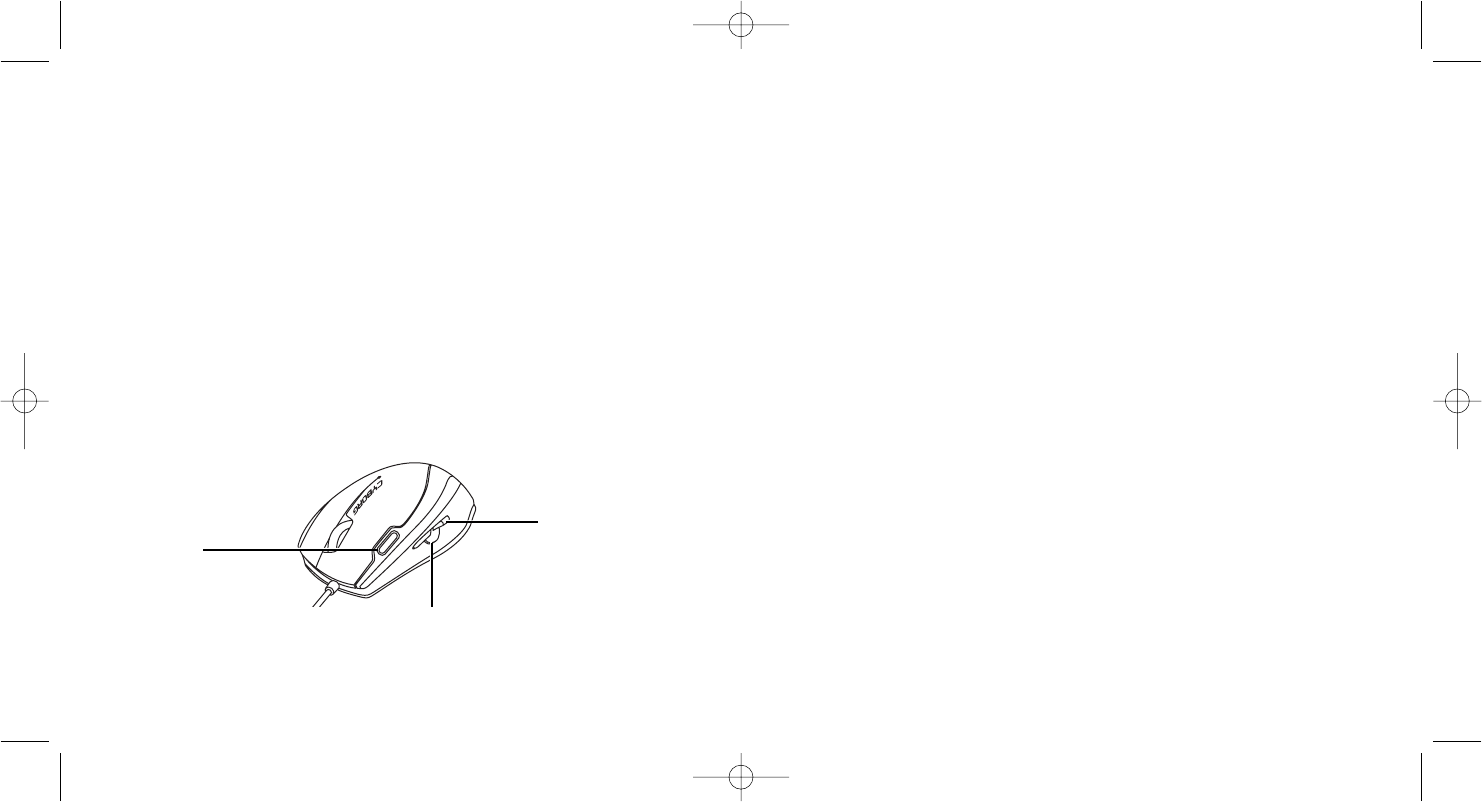
Front top button (mode
selector)
The button at the front
left of the mouse
switches modes to
change mouse sensitivity
when using the Saitek
Smart Technology default
software profile. The
green LEDs on the side
of the mouse indicate
which mode is selected.
Front and back
side buttons
The buttons on the side of
the mouse can perform a
range of functions
depending on how they are
programmed. As a default,
they operate as Internet
forward and back buttons
when using a web browser
to move to next web page
or last page visited.
Mouse Buttons
As well as the typical left and right buttons with scroll wheel and wheel button, the Saitek Cyborg
V.3 Mouse has four other buttons offering extra functionality.
Central side button
The central side button has no
default function in Windows.
However, using the Saitek Smart
Technology Software profile this
button opens internet favourites.
PM70_manual.qxd 27/04/2009 15:39 Page 2
Descargue el manual en Español (PDF, 0.31 MB)
(Piense en el medioambiente y solo imprima este manual si es de verdad necesario)

Loading…

Puntuación

Dé su opinión de la Saitek Cyborg V.3 Ratón calificando el producto. ¿Quiere compartir su experiencia con este producto o hacer una pregunta? Deje un comentario en la parte inferior de la página.
¿Estás satisfecho con elSaitek Cyborg V.3 Ratón?
No
Sea el primero en calificar este producto
0 votos

Únase a la conversación sobre este producto

Aquí puedes compartir lo que piensas sobre Saitek Cyborg V.3 Ratón. Si tiene alguna pregunta, primero lea atentamente el manual. Puede solicitar un manual utilizando nuestro formulario de contacto.

Más sobre este manual

Entendemos que es bueno tener un manual en papel para tus Saitek Cyborg V.3 Ratón. Siempre puedes descargar el manual desde nuestro sitio web e imprimirlo tú mismo. Si deseas tener un manual original te recomendamos contactar con Saitek. Es posible que puedan proporcionar un manual original. ¿Estás buscando el manual de tu Saitek Cyborg V.3 Ratón en otro idioma? Elija su idioma preferido en nuestra página de inicio y busque el número de modelo para ver si lo tenemos disponible.

Especificaciones

Marca Saitek
Modelo Cyborg V.3
Categoría Ratónes
Tipo de archivo PDF
Tamaño del archivo 0.31 MB

Todos los manuales para Saitek Ratónes
Más manuales de Ratónes

Preguntas frecuentes sobre Saitek Cyborg V.3 Ratón

Nuestro equipo de atención al cliente busca información útil sobre los productos y responde a las preguntas frecuentes. Si encuentra inexactitudes en las preguntas frecuentes, indíquenoslo usando nuestro formulario de contacto.

¿Cuál es la mejor superficie para usar un ratón? Verificado

Un ratón tradicional con “trackball” funcionará mejor en una superficie acolchada como una alfombrilla de ratón. Un ratón óptico funcionará en casi todas las superficies planas, con la excepción de las superficies transparentes o reflectantes. Las superficies con un estampado repetitivo pueden interferir con el funcionamiento del ratón.

Ha sido de gran ayuda (127) Leer más

¿Qué es un mouse ergonómico? Verificado

El uso diario de un mouse normal durante períodos prolongados puede provocar dolor en el brazo y la muñeca. Esto también se llama RSI (lesión por esfuerzo repetitivo). Un mouse ergonómico está diseñado para reducir estos problemas o prevenirlos.

Ha sido de gran ayuda (59) Leer más

¿Cuál es la diferencia entre un mouse normal y un mouse para juegos? Verificado

Cada mouse para juegos se puede usar como un mouse normal. Sin embargo, un mouse para juegos a menudo tiene botones adicionales en lugares específicos para facilitar el juego. Incluso hay ratones para juegos que tienen botones destinados a jugar mejor un juego específico.

Ha sido de gran ayuda (58) Leer más

¿Cuál es el mejor tamaño de ratón para la palma de mi mano? Verificado

Depende en parte de las preferencias personales y las necesidades, pero en general un ratón debe ser alrededor del 60 % del tamaño de su mano. Es lo más cómodo y ergonómico.

Ha sido de gran ayuda (53) Leer más
Manual de uso Saitek Cyborg V.3 Ratón

Productos relacionados

Categorias relacionadas

×
Download