Manual de uso Targus THZ500NO VersaType Teclado

¿Necesita un manual para su Targus THZ500NO VersaType Teclado? A continuación puedes ver y descargar el manual en PDF gratis en español. Este producto actualmente tiene 2 preguntas frecuentes, 0 comentarios y tiene 0 votos. Si este no es el manual que desea, , contáctenos.

¿Su producto tiene algún defecto y el manual no ofrece ninguna solución? Vaya a Repair Café para solicitar un servicio de reparación gratuito.

Manual de uso

Loading…
2
Targus Pivoting Bluetooth
®
Keyboard Case for iPad
®
Air 2
1
Targus Pivoting Bluetooth
®
Keyboard Case for iPad
®
Air 2
Introduction
Thank you for purchasing the Targus Pivoting Hard Shell Keyboard case
for iPad
®
Air 2. The keyboard uses Bluetooth
®
technology which provides a
seamless connection up to 33 feet (10m) away and features a pivoting screen
which allows you to adapt the case to a variety of functions.
Contents
• Pivoting Hard Shell Keyboard Case
• USB Charging Cable
System Requirements
Hardware
• iPad
®
Air 2
Establishing a Connection with iPad
®
Air 2
1. Switch on the Bluetooth keyboard. (Turn on the power by sliding the
ON/OFF switch to the right). The blue LED will remain lit for 3 minutes.
2. While the blue LED is lit, go to your iPad
®
’s Bluetooth
®
settings and select
“Targus Pivoting Keyboard”.
3. Enter the password that’s provided and press “enter”.
4. The Bluetooth
®
keyboard is now connected to your iPad
®
.
5. If the pairing process takes longer than 3 minutes and the blue LED turns
off, reset the power switch (“OFF” and “ON”) and follow steps 2 through 4.
Or manually press “Fn” + “Caps Lock”, wait for the blue LED to light and
then follow steps 2 through 4.
Reconnecting the iPad
®
Air 2
If another Bluetooth
®
device has recently been connected to your iPad
®
,
follow steps 1 and 2 to reconnect. The blue LED will remain lit while the
keyboard is reconnecting.
Charging the Bluetooth
®
Keyboard
The Bluetooth
®
Keyboard requires charging when the low battery red LED
beginsashing.
1. Connect the keyboard to a USB power source with the USB charging
cable.
2. The charging red LED will remain lit until the keyboard is fully charged.
3. Under normal conditions, the fully charged keyboard provides 130 hours
of battery life.
Bluetooth
®
Connection and Battery Charging
Indicators
Pairing-blueLEDashesuntilkeyboardispaired
Charging - red LED remains lit while charging
Low Battery - redLEDashesuntilchargingbegins
Troubleshooting Guide
• EnsuretheBluetooth
®
keyboard is fully charged.
• IftheredLEDstartsblinkingwhilethekeyboardisinuse,itisindicating
that the battery is low and needs to be charged.
• OnyouriPad
®
, click on the Bluetooth
®
icon within the system preferences
pane. Refer to the Apple Bluetooth
®
helpletoensureBluetooth
®
is
working properly.
• MakesuretherearenootherBluetooth
®
devices in close proximity.
• IfyouriPad
®
is connected to other Bluetooth
®
devices, you may need to
disconnect some devices before you can connect to the keyboard.
• Ifthekeyboardisstillnotrecognized,makesurethecorrectversionof
software is installed. Verify the iOS version for compatibility.
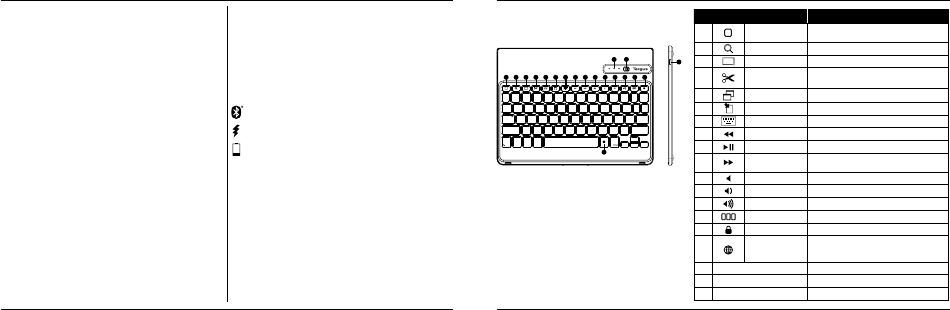
Hot Key functions
Key
Functions
1
Home Screen
Go back to the Home screen. Hold down to activate
Siri.
2
Search Search iPad
®
Air 2
3
Select all Select all
4
Cut
Removes the current selection and places it on the
Clipboard.
5
Copy Copy selected item(s) to the Clipboard.
6
Pae Pae copied item(s).
7
On Screen Keyboard Show and hide the keyboard on your display.
8
Previous Track Rewind or go to previous song, movie, or slideshow.
9
Play/Pause Play or pause songs, movies, or slideshows.
10
Next Track
Fa Forward or go to next song, movie, or
slideshow.
11
Mute Mute the sound on the iPad.
12
Volume Down Decrease the volume on the iPad.
13
Volume Up Increase the volume on the iPad.
14
Apps Display Display recently opened apps.
15
Lock Lock your display.
16
Language Shift
Select a display language. This feature is available only
when you have selected 2 languages or more in your
devices language settings.
17
Blue LED Indicators Indicates pairing / charging / low battery atus.
18
Power Switch Switch the Bluetooth keyboard between ON/OFF.
19
Micro USB Charger Port Connect to USB charging source.
1 2 3 4 5 6 7 8 9 10 11 12 13 14 15
16
17 18
19
Descargue el manual en Español (PDF, 1.15 MB)
(Piense en el medioambiente y solo imprima este manual si es de verdad necesario)

Loading…

Puntuación

Dé su opinión de la Targus THZ500NO VersaType Teclado calificando el producto. ¿Quiere compartir su experiencia con este producto o hacer una pregunta? Deje un comentario en la parte inferior de la página.
¿Estás satisfecho con elTargus THZ500NO VersaType Teclado?
No
Sea el primero en calificar este producto
0 votos

Únase a la conversación sobre este producto

Aquí puedes compartir lo que piensas sobre Targus THZ500NO VersaType Teclado. Si tiene alguna pregunta, primero lea atentamente el manual. Puede solicitar un manual utilizando nuestro formulario de contacto.

Más sobre este manual

Entendemos que es bueno tener un manual en papel para tus Targus THZ500NO VersaType Teclado. Siempre puedes descargar el manual desde nuestro sitio web e imprimirlo tú mismo. Si deseas tener un manual original te recomendamos contactar con Targus. Es posible que puedan proporcionar un manual original. ¿Estás buscando el manual de tu Targus THZ500NO VersaType Teclado en otro idioma? Elija su idioma preferido en nuestra página de inicio y busque el número de modelo para ver si lo tenemos disponible.

Especificaciones

Marca Targus
Modelo THZ500NO VersaType
Categoría Teclados
Tipo de archivo PDF
Tamaño del archivo 1.15 MB

Todos los manuales para Targus Teclados
Más manuales de Teclados

Preguntas frecuentes sobre Targus THZ500NO VersaType Teclado

Nuestro equipo de atención al cliente busca información útil sobre los productos y responde a las preguntas frecuentes. Si encuentra inexactitudes en las preguntas frecuentes, indíquenoslo usando nuestro formulario de contacto.

Las letras del teclado no están en las posiciones a las que estoy acostumbrado. ¿Por qué? Verificado

La mayoría de los teclados son de configuración QWERTY, que indica las seis primeras letras del teclado. Sin embargo, hay diferentes diseños de teclado que se ajustan a las necesidades específicas de un determinado idioma. También es posible que las teclas se hayan intercambiado. Sobre todo con los teclados antiguos esto es fácil de hacer.

Ha sido de gran ayuda (1359) Leer más

¿Cuál es la mejor forma de limpiar mi teclado? Verificado

Nunca inserte objetos entre los bordes de las teclas, ya que esto empujará principalmente suciedad y dañará el teclado. Es mejor limpiar el teclado con aire comprimido manteniendo el teclado boca abajo. La parte superior de las teclas se puede limpiar con un paño ligeramente húmedo.

Ha sido de gran ayuda (202) Leer más

Manual de uso Targus THZ500NO VersaType Teclado

Productos relacionados

Categorias relacionadas

×
Download