Manual de uso Trust 16937 Flex Design Tableta gráfica

¿Necesita un manual para su Trust 16937 Flex Design Tableta gráfica? A continuación puedes ver y descargar el manual en PDF gratis en español. Este producto actualmente tiene 0 preguntas frecuentes, 0 comentarios y tiene 0 votos. Si este no es el manual que desea, , contáctenos.

¿Su producto tiene algún defecto y el manual no ofrece ninguna solución? Vaya a Repair Café para solicitar un servicio de reparación gratuito.

Manual de uso

Loading…
Flex Design Tablet – User’s Manual
5
Navigate (Navigate)
14
Clicking:
You can use the pen to click, by simply tapping the tablet’s surface.
15
Double clicking:
You can use the pen to double-click, by simply tapping the tablet’s surface twice.
Double click: By default, the upper button of the pen is configured to act as a double-click
16
Dragging:
To drag and drop an object,
you need to select it (touch the tablet’s surface), move it (move the pen
across the tablet’s surface), and release it (lift the pen from the surface).
Pen Flicks:
Pen Flicks are a feature of Windows Vista and Windows 7/8 that associates the movement of your pen with actions. For
example, performing a pen flick downward produces the same result as pressing the PAGE UP key on your keyboard.
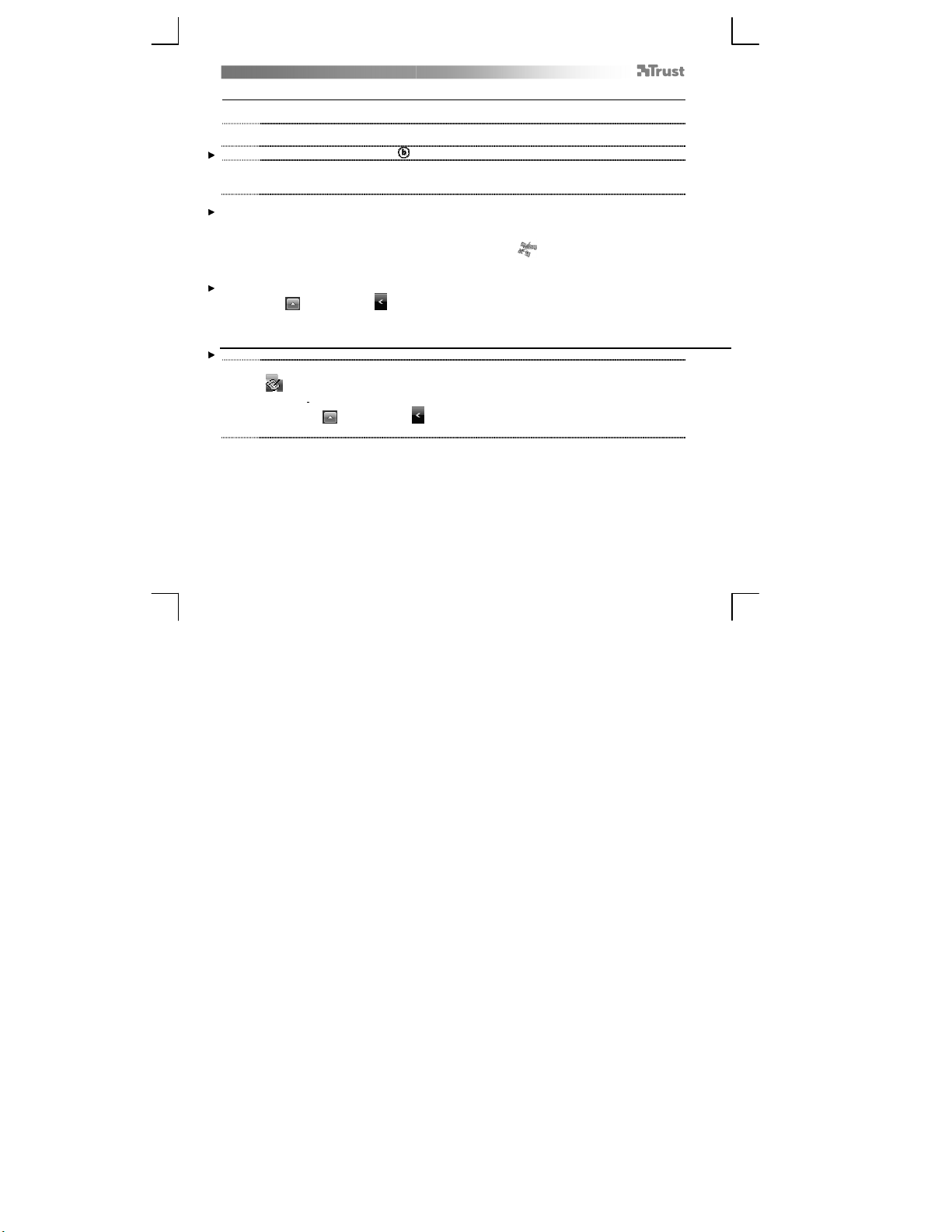
To activate and start using Pen Flicks, double click the Pen Flicks icon ( ) in your System Tray (next to your
computer’s clock) and follow the animated tutorial to learn how to use Pen Flicks.
If the Pen Flicks icon is not visible, click the “Show hidden icons” button first.
(Windows 7/8: / Windows Vista: )
Advanced configuration (Advanced configuration)
The illustrations for the following instructions are located at the end of this manual
17
Click on the Trust icon in your Windows system tray to open the tablet configuration utility.
( next to your computer’s clock)
If the Trust icon is not visible, click the “Show hidden icons” button first.
(Windows 7/8: / Windows Vista: )
With the driver installed, the Trust tray utility will load automatically when you connect the tablet to your computer.
Tablet properties
This utility consists in 2 tabs (Pen, Mapping)
In each tab, the “Default” button allows you to restore the default settings, and the “About” button displays information
about the tablet and its driver.
The “Option” button allows to save (Export) and load (Import) settings, and to assure compatibility with applications that
do not support 2048 pen pressure levels (the compatibility mode is enabled by default).
18 Pen
Descargue el manual en Español (PDF, 3.44 MB)
(Piense en el medioambiente y solo imprima este manual si es de verdad necesario)

Loading…

Puntuación

Dé su opinión de la Trust 16937 Flex Design Tableta gráfica calificando el producto. ¿Quiere compartir su experiencia con este producto o hacer una pregunta? Deje un comentario en la parte inferior de la página.
¿Estás satisfecho con elTrust 16937 Flex Design Tableta gráfica?
No
Sea el primero en calificar este producto
0 votos

Únase a la conversación sobre este producto

Aquí puedes compartir lo que piensas sobre Trust 16937 Flex Design Tableta gráfica. Si tiene alguna pregunta, primero lea atentamente el manual. Puede solicitar un manual utilizando nuestro formulario de contacto.

Más sobre este manual

Entendemos que es bueno tener un manual en papel para tus Trust 16937 Flex Design Tableta gráfica. Siempre puedes descargar el manual desde nuestro sitio web e imprimirlo tú mismo. Si deseas tener un manual original te recomendamos contactar con Trust. Es posible que puedan proporcionar un manual original. ¿Estás buscando el manual de tu Trust 16937 Flex Design Tableta gráfica en otro idioma? Elija su idioma preferido en nuestra página de inicio y busque el número de modelo para ver si lo tenemos disponible.

Especificaciones

Marca Trust
Modelo 16937 Flex Design
Categoría Tabletas gráficas
Tipo de archivo PDF
Tamaño del archivo 3.44 MB

Todos los manuales para Trust Tabletas gráficas
Más manuales de Tabletas gráficas
Manual de uso Trust 16937 Flex Design Tableta gráfica
×
Download